

Your Google Business Profile (GBP) is one of the most powerful free marketing tools available to therapists. When someone searches for therapy services in your area, your GBP listing can appear prominently in Google Maps and local search results — often before any website links. Setting it up correctly from the start saves you time and helps you attract the right clients faster.
This guide walks you through every step, from thinking like a client to fully optimizing your profile for maximum visibility.
Act Like a Client
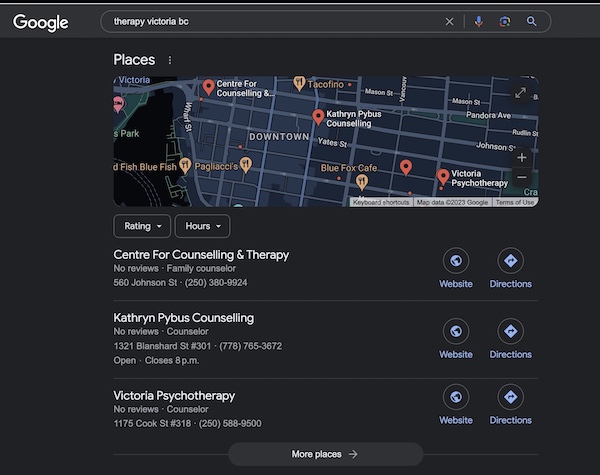
Before you touch your Google Business Profile, take a step back and search for your own services the way a potential client would. Open Google in an incognito window and type in the phrases someone might use: "therapist near me," "couples counselling [your city]," or "anxiety therapy [your neighbourhood]."
Pay attention to what shows up. You'll likely see a map with three pinned businesses — this is the Google Maps "local pack," and it's prime real estate. Below that, you'll find organic results dominated by directories like Psychology Today and TherapyDen. Notice how the map results include a business name, star rating, address, hours, and a brief description. That's all coming from the Google Business Profile.
Google's local search algorithm (often referred to as the Pigeon algorithm) determines which businesses appear in that map pack. It weighs three main factors: relevance, distance, and prominence. Relevance means your profile matches what the person searched for. Distance is how close your practice is to the searcher. Prominence refers to how well-known and well-reviewed your business is online. Your GBP setup directly influences all three.
Take note of which competitors are appearing in the map results for your target searches. Look at their categories, their review counts, their photos. This research gives you a clear picture of what you're working toward and where the gaps are.
Setting Up Your Google Business Profile
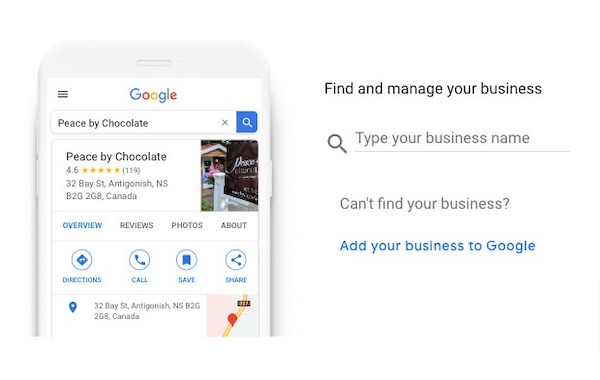
Head to business.google.com and sign in with the Google account you want to manage your practice with. If you already have a personal Gmail account, you can use that, but many practitioners prefer to create a separate account dedicated to their practice.
Once signed in, search for your business name. If your practice already appears (sometimes Google creates listings automatically from directory data), claim it. If it doesn't appear, click the option to add your business to Google.
Business Name
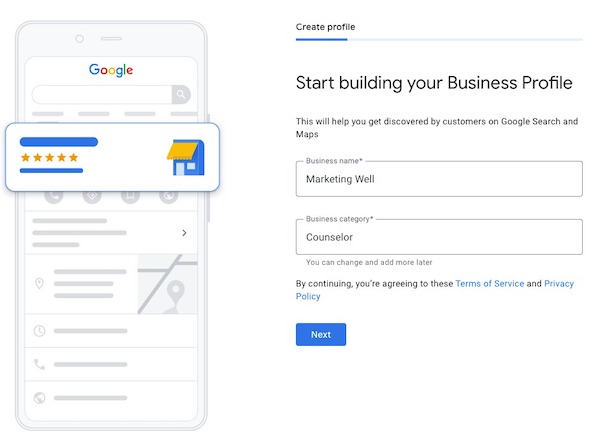
Enter your exact business name as it appears in the real world — on your signage, business cards, and official documents. Do not stuff keywords into your business name. Google's guidelines are clear on this: your name should be "Maple Street Counselling," not "Maple Street Counselling — Anxiety Therapy, Couples Counselling, EMDR Trauma Therapy." Keyword stuffing in your business name can result in a suspended listing, which is far worse than any short-term ranking boost.
Category Selection
Your primary category is one of the strongest ranking signals for local search. For most therapists, "Counselor" or "Psychologist" will be the best primary category. Google offers a limited set of categories, so choose the one that most accurately describes your core service. You'll be able to add additional categories later during optimization.
Location Configuration
If clients visit your office, enter your full street address. Google will display it on Maps and in search results. If you offer services at your location but also travel to clients, you can set a service area in addition to your address. If you're an online-only practice operating from home and don't want your home address visible, you can set up as a service-area business instead — though this comes with limitations for local visibility.
Contact Details
Add your practice phone number and website URL. A useful tip: append UTM tracking parameters to your website URL so you can see in Google Analytics exactly how much traffic your GBP listing drives. For example, instead of entering www.yourpractice.com, enter www.yourpractice.com?utm_source=google&utm_medium=organic&utm_campaign=gbp. This small step gives you clear data on your GBP's performance.
Verification
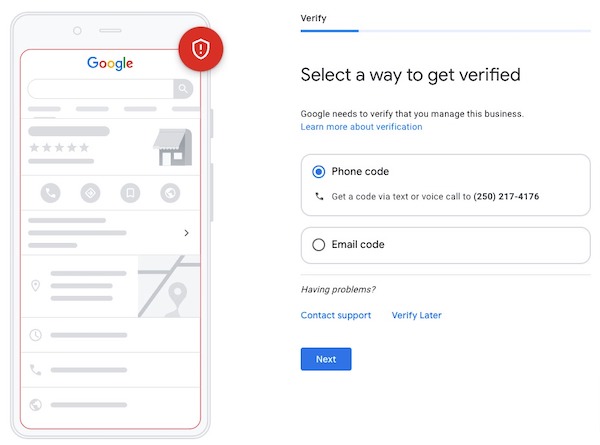
Google needs to verify that your business is real and that you're authorized to manage the listing. The most common verification method is a postcard mailed to your business address with a unique code. This typically takes five to seven business days. Some businesses qualify for phone or email verification, which is faster. Don't skip this step — your profile won't appear in search results until verification is complete.
Hours of Operation
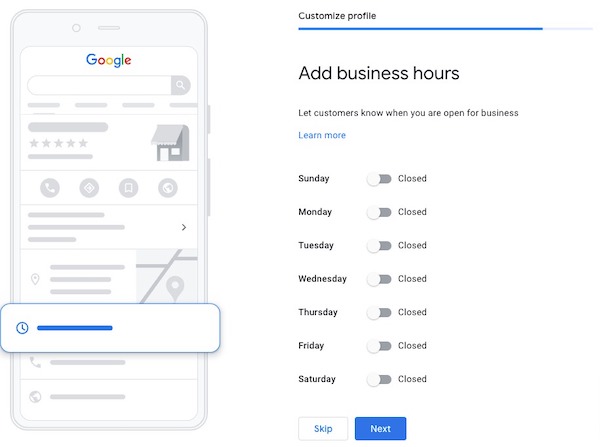
Set your regular business hours accurately. If you offer evening or weekend appointments, make sure those are reflected. Inaccurate hours frustrate potential clients and can lead to negative reviews. You can also set special hours for holidays or closures.
Messaging
Google offers a messaging feature that lets potential clients contact you directly through your listing. If you can respond promptly, enable it — it provides another low-friction way for people to reach out. If you can't commit to timely responses, leave it off. Slow replies create a poor impression.
Business Description
Write a clear, informative description of your practice. You have 750 characters, but only the first 250 or so are visible without clicking "more." Front-load the most important information: who you help, what you specialize in, and where you're located. Write naturally and avoid keyword stuffing. This description doesn't directly impact rankings, but it influences whether someone clicks through to learn more.
Photos
Upload a professional logo as your profile photo and add several photos of your office space, waiting area, and the exterior of your building. Profiles with photos receive significantly more clicks and direction requests than those without. We'll cover photo optimization in more detail in the next section.
Optimizing Your Google Business Profile
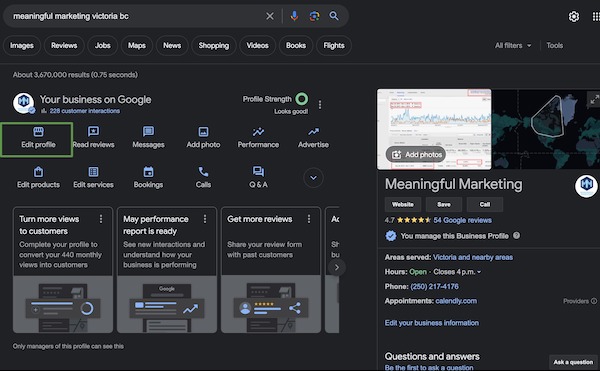
Once your profile is verified and the basics are in place, it's time to optimize. Sign in to your Google Business Profile and navigate to your profile editor. You can also access it by searching your business name in Google while logged into your management account — you'll see edit options directly in the search results.
About Section
Business name: Confirm your name is accurate and matches your real-world branding exactly. No extra keywords.
Categories: You can add up to five additional categories beyond your primary one. Use all of them if relevant. For a therapist, additional categories might include "Marriage or Family Therapist," "Mental Health Service," "Psychotherapist," or "Family Counselor." Each additional category expands the searches you can appear in.
Description: If you haven't already, write a thorough description. Aim for around 250 words that cover your specialties, your approach, the types of clients you work with, and your location. Mention specific issues you treat (anxiety, depression, trauma, relationship conflict) and the modalities you use (EMDR, CBT, IFS). Write for humans first, but include the terms people actually search for.
Opening date: Add the date your practice opened. Businesses with longer histories can receive a slight trust signal in Google's algorithm.
Contact Information
Make sure your phone number is consistent across your GBP, your website, and every online directory where your practice is listed. Inconsistent phone numbers confuse Google and can hurt your local rankings. If you've changed numbers at any point, audit your listings to make sure they all match.
Location and Service Area
If you serve clients beyond your immediate address, define your service area. You can specify cities, postal codes, or a radius around your location. Be realistic — setting a service area that spans an entire province won't help you rank in any specific city.
Hours
Review your hours regularly, especially around holidays. Google sometimes auto-suggests changes to your hours based on user reports, so check periodically to make sure nothing has been altered without your knowledge.
Photos
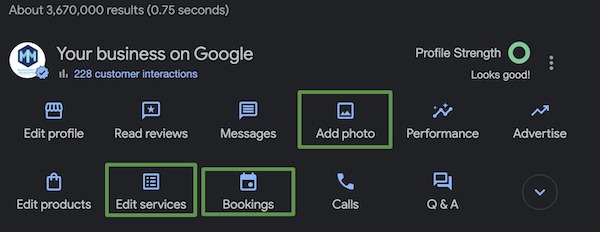
Upload high-quality photos and name the files descriptively before uploading. Instead of "IMG_4582.jpg," name the file something like "couples-therapy-office-vancouver.jpg." While Google has stated that file names aren't a direct ranking factor, descriptive file names help with image search and general organization. Aim for at least ten photos covering your office interior, exterior, team members, and any signage.
Services
Google lets you add a list of services directly to your profile. Create entries for each type of therapy you offer: individual therapy, couples counselling, family therapy, EMDR, CBT, and so on. Include a brief description and your fee for each service. This information appears on your profile and helps Google understand what you offer.
Bookings
If you use an online booking platform like JaneApp, add your booking link to your GBP. This creates a "Book" button directly on your listing, giving potential clients a frictionless path from search result to scheduled appointment. The fewer steps between finding you and booking with you, the better.
Setting up and optimizing your Google Business Profile is one of the highest-impact things you can do for your practice's local visibility. It's free, it's within your control, and it puts you directly in front of people who are actively searching for help. Once your profile is solid, the next step is improving your rankings within the map pack — which is exactly what we cover in our follow-up post on five ways to improve your GBP rankings.

Jordan helps therapists and wellness practitioners get found and get booked. He has run his own SEO, Google Ads, and web design company since 2012, and in 2022 began working specifically with therapy practices across North America.